
How to Claim SOL with Phantom Wallet
1. Mobile App (iOS/Android)
a) Video Guide
b) Text Guide
-
Open Phantom Mobile App on your iOS or Android phone
-
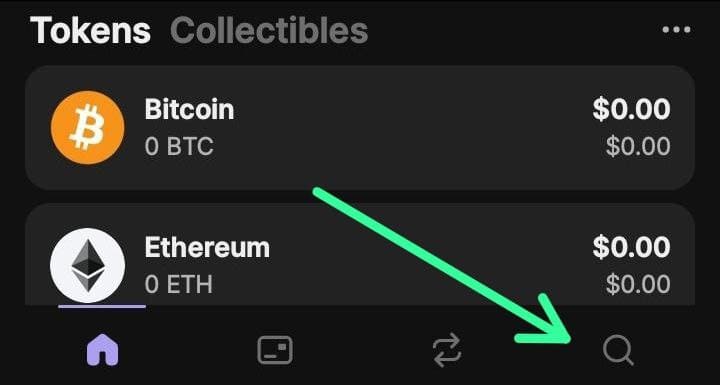
Click on the search icon in the bottom right corner
-
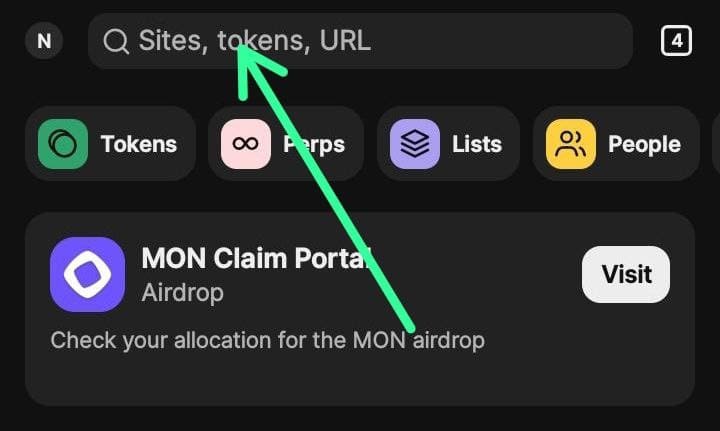
Click on the address bar and search for unclaimedsol.com
-
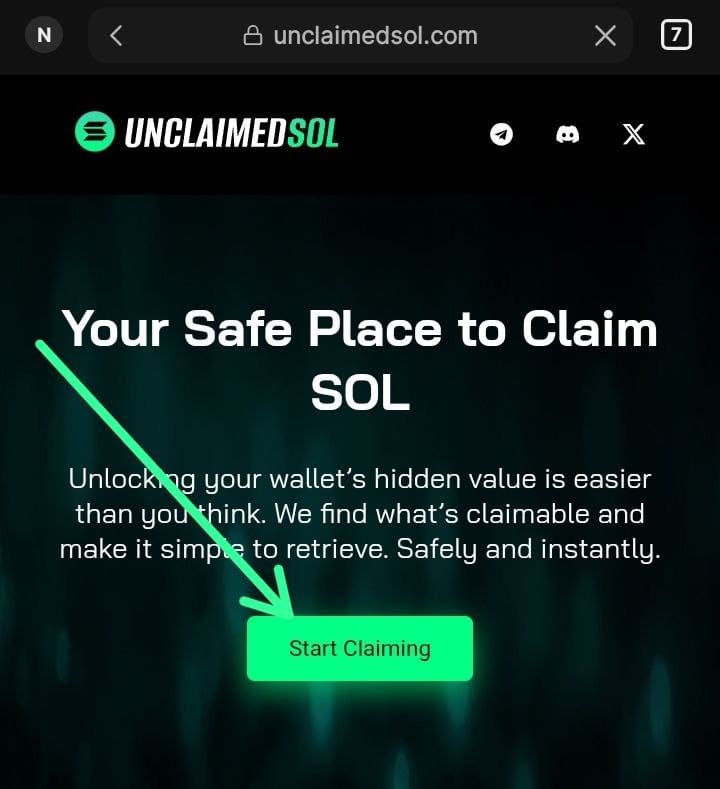
Once our website has loaded, click the Start Claiming button
-
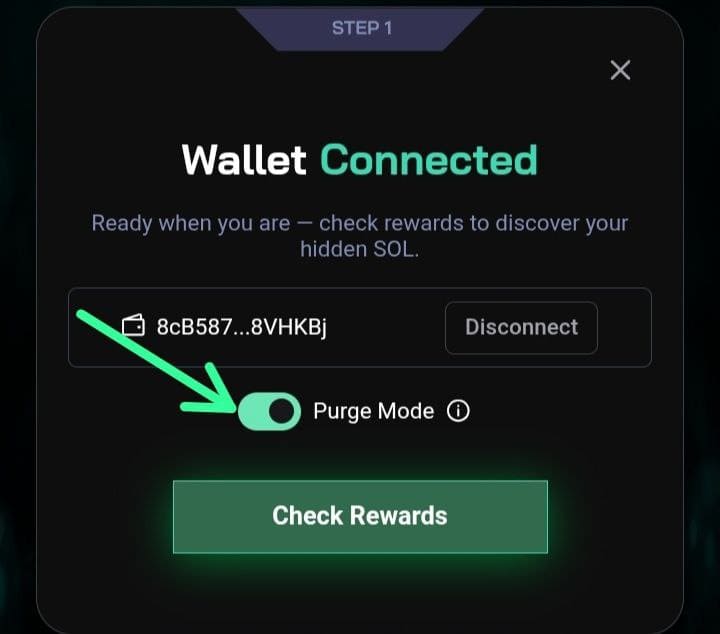
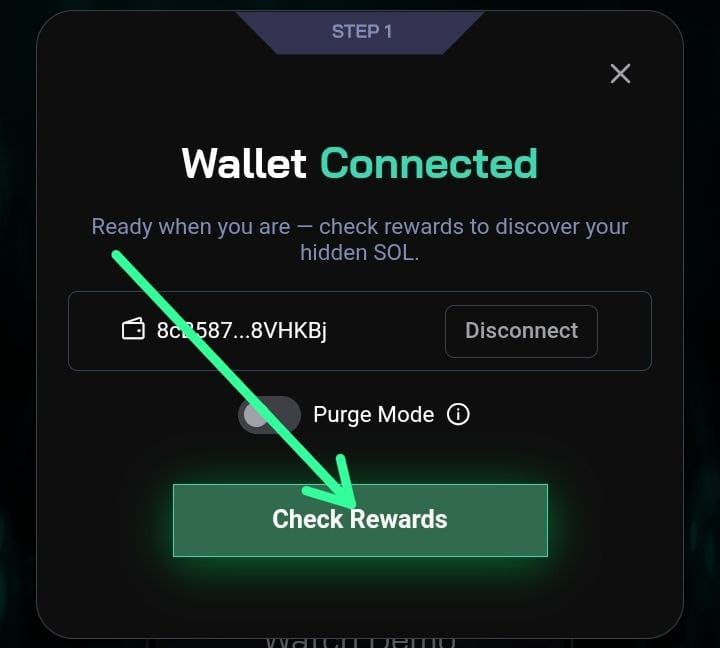
Optional: You can select Purge mode for complete scanning of all assets.
-
Tap on Check Rewards button
-
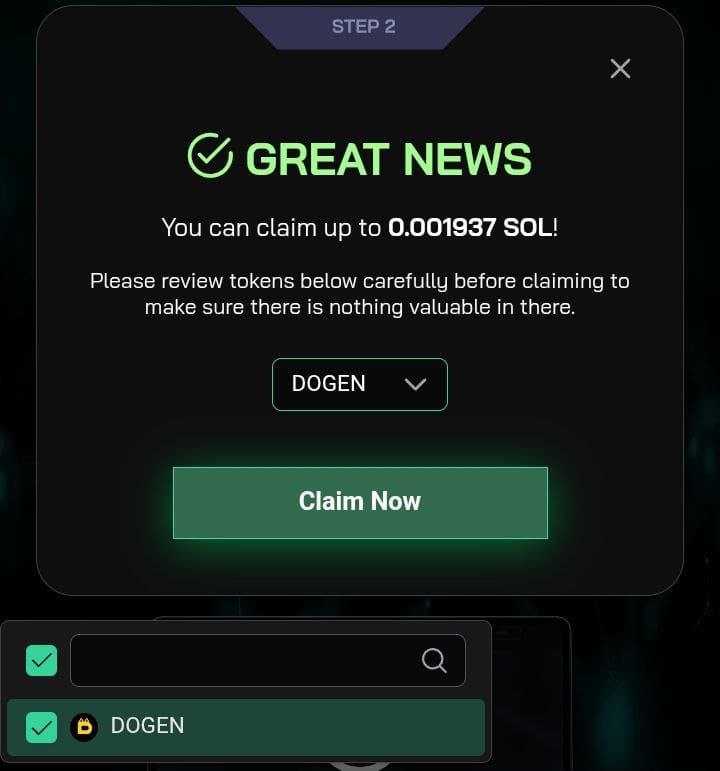
If you have some SOL dust in your wallet, you will see a list of assets you can select/deselect.
-
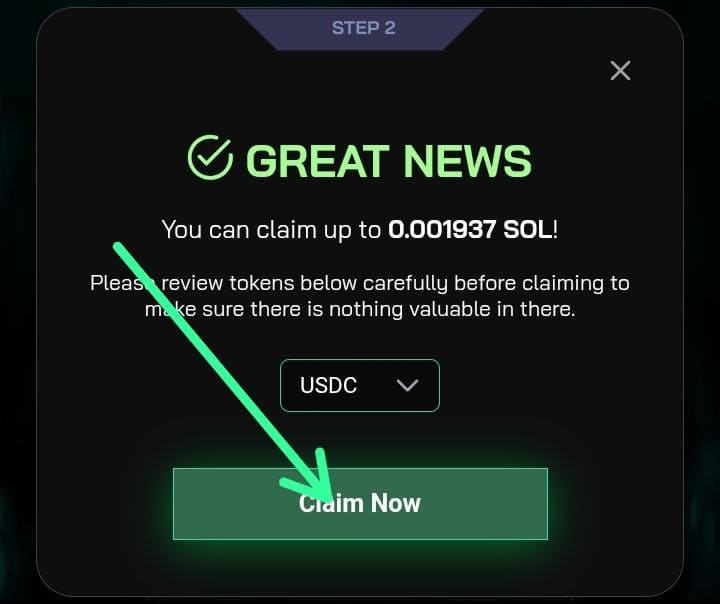
After you've reviewed all assets, tap on Claim Now and Approve the transactions
-
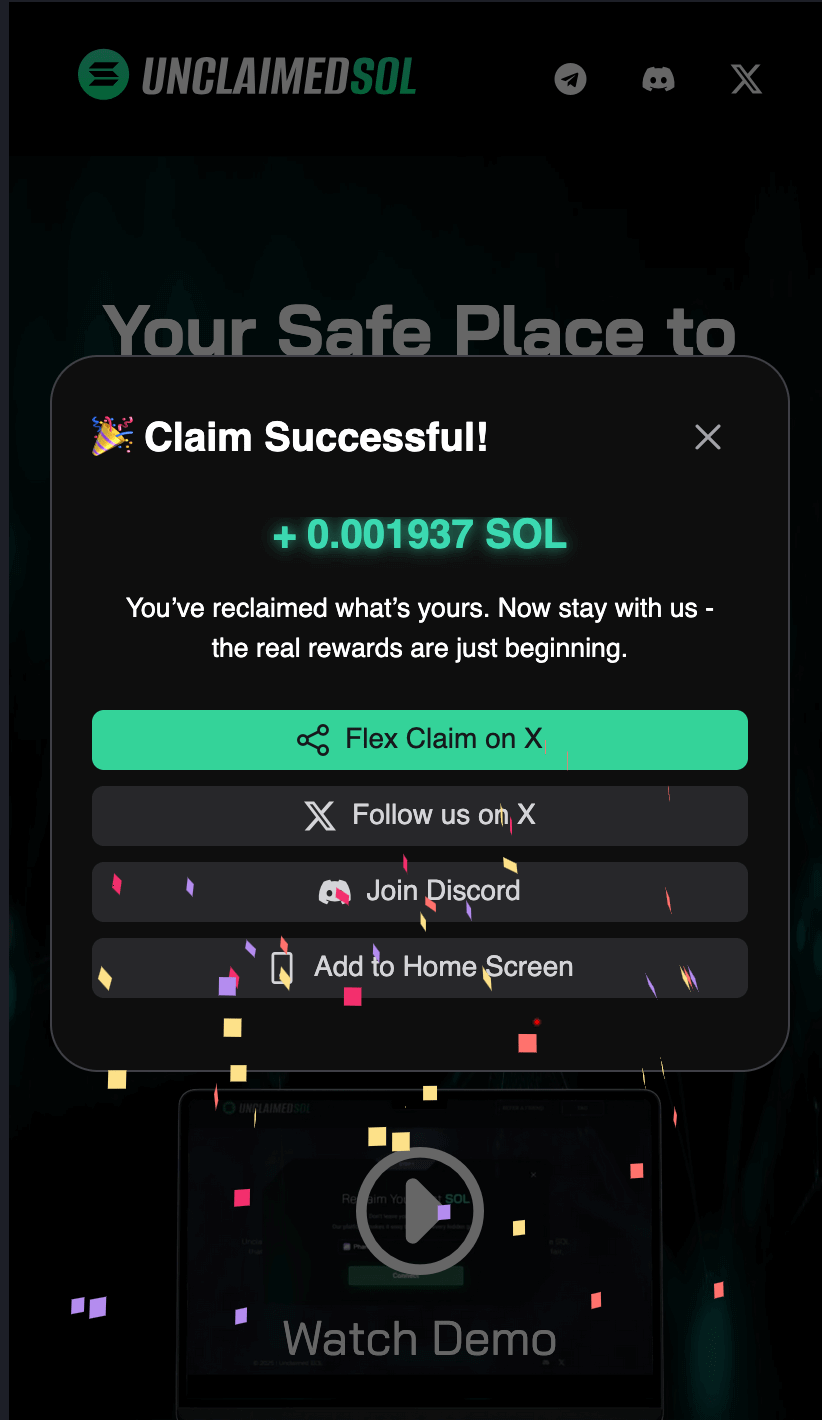
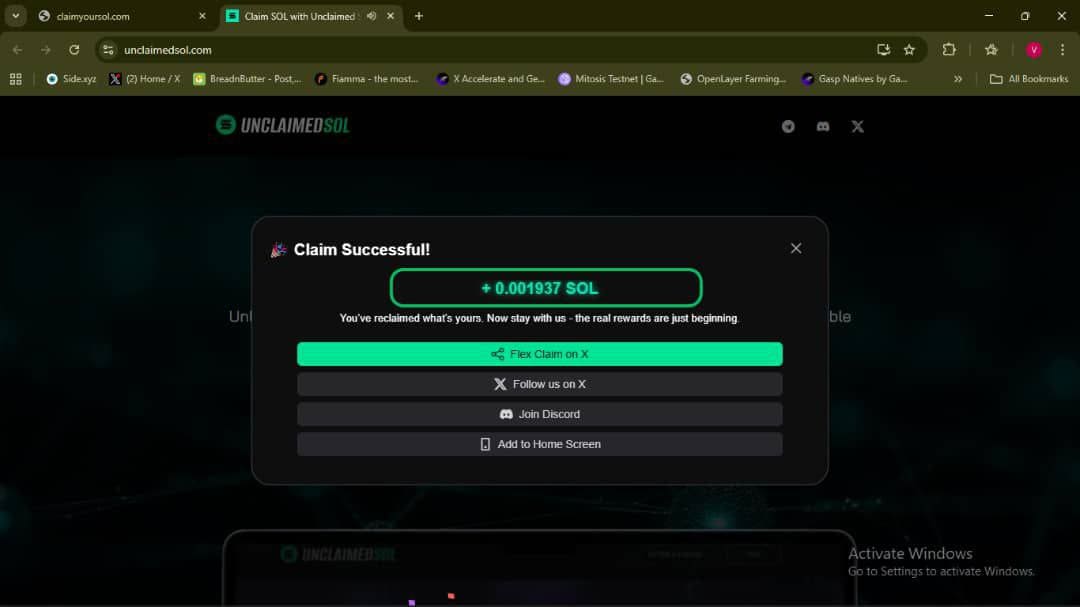
Enjoy your reclaimed SOL! Don't forget to share the news!
2. Browser Extension
Video Guide
Text Guide
-
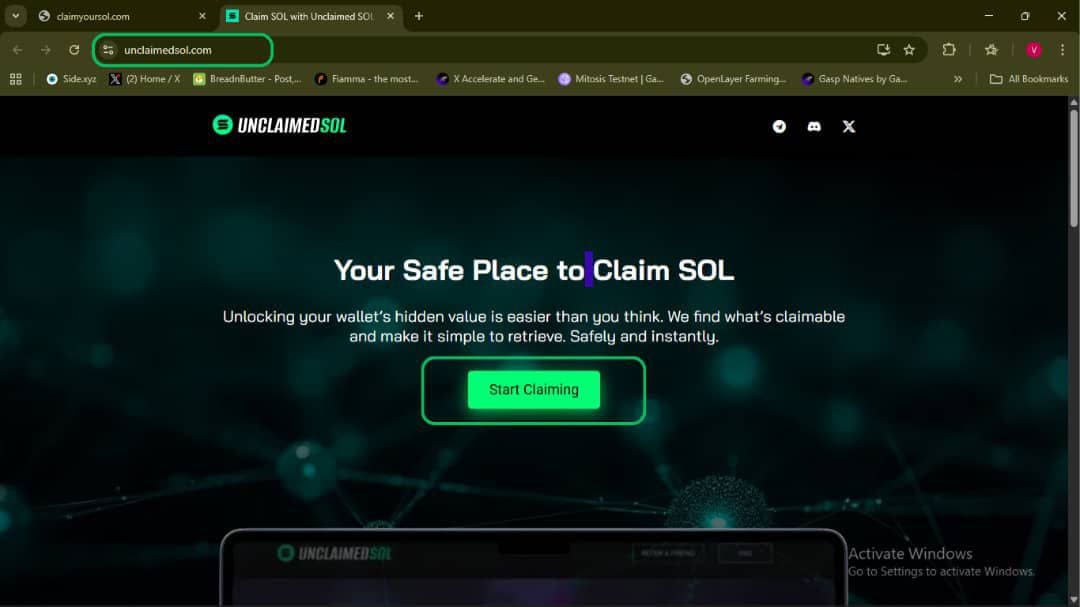
Go to unclaimedsol.com and click on Start Claiming
-
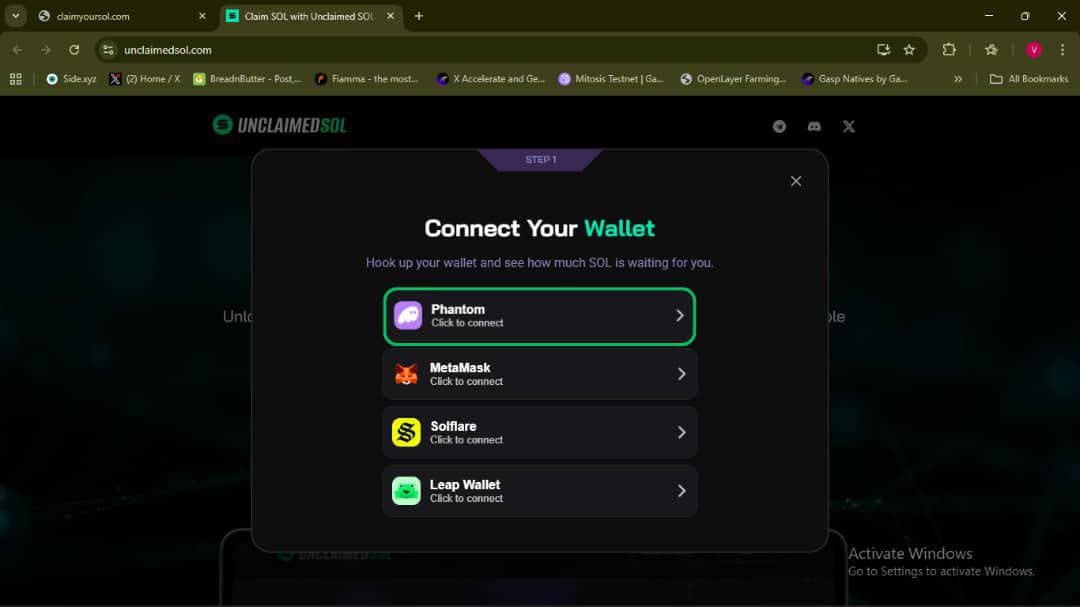
Choose Your Wallet (Phantom)
-
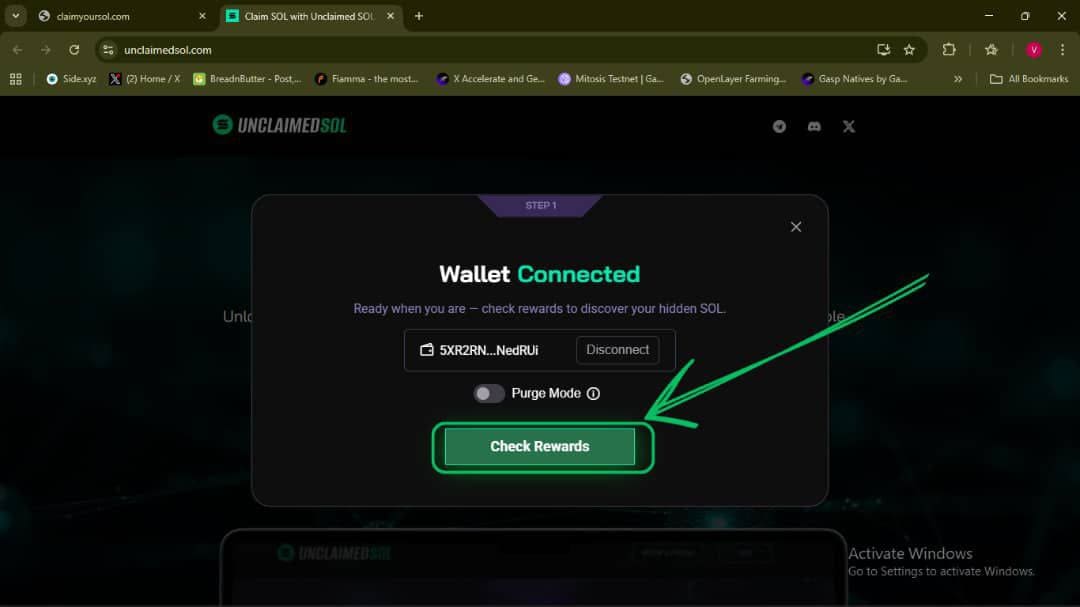
Click Check Rewards (optionally check Purge mode)
-
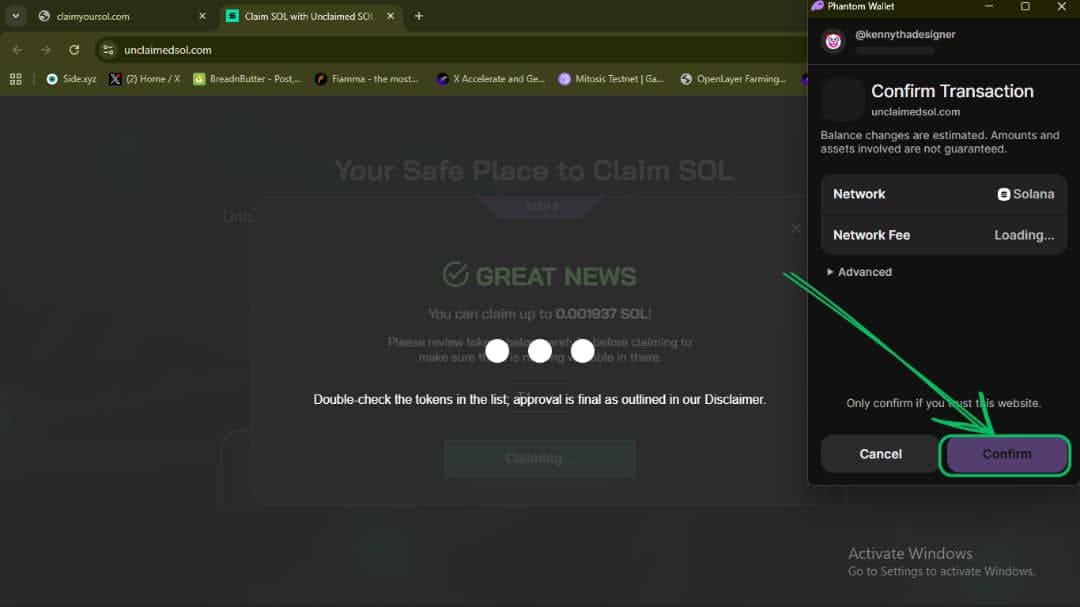
If you get results, choose assets you wish to burn/close and click Claim Now and Approve
-
You're done! Share on X and enjoy your reclaimed SOL!
Next steps
Start in the main Unclaimed SOL claim flow when you're ready to connect Phantom and scan for reclaimable SOL.
Before you confirm transactions, review the security model, claim fee breakdown, and Unclaimed SOL vs Sol Incinerator comparison. For common claiming questions, see the FAQ.
After claiming, verify the signature on Solscan and confirm your wallet balance updates.